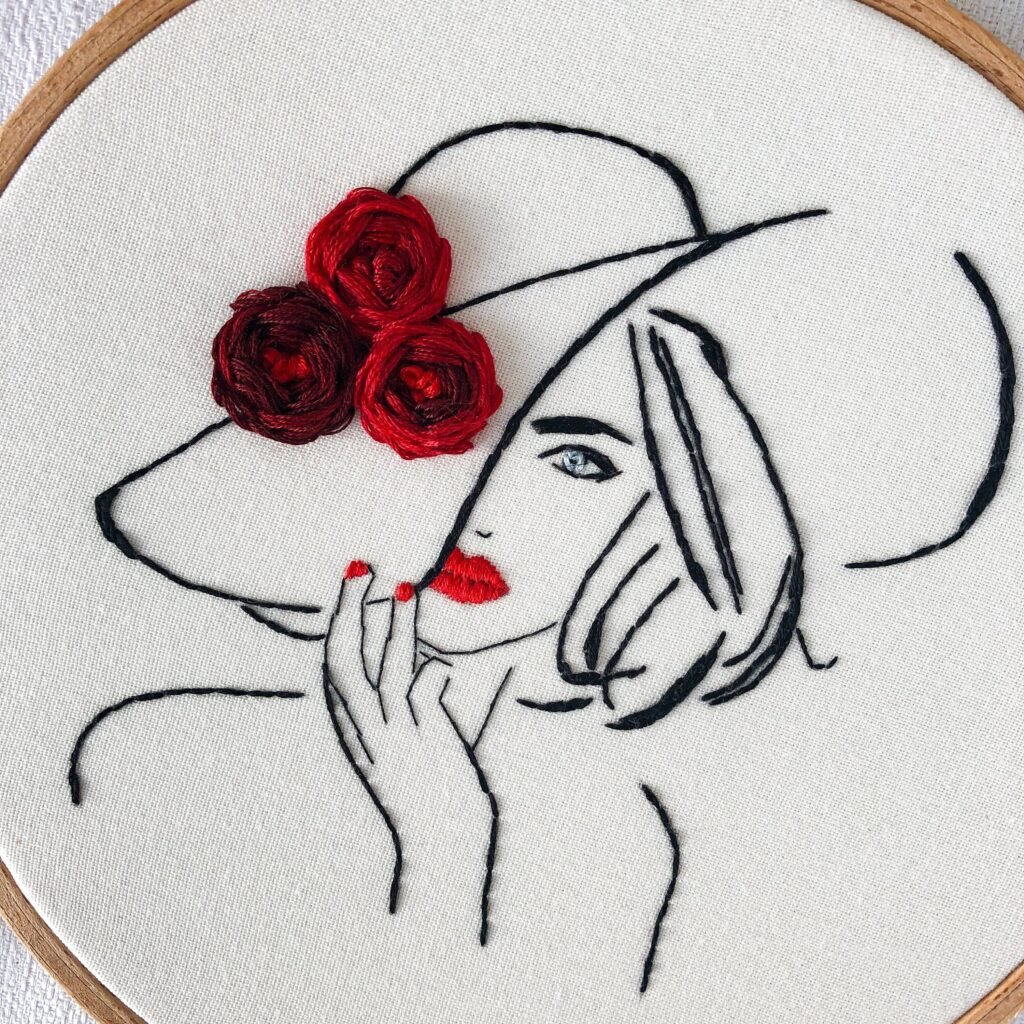

We’ve all been there: you find the perfect photo—your kid’s doodle, a vintage logo, Grandma’s handwriting, or a blurry phone snap of the family dog—and you instantly think, “This NEEDS to be embroidered.” Then reality hits: the image is tiny, pixelated, and looks like it survived a 2005 flip-phone camera. Don’t trash the idea yet. With the right steps (and zero graphic-design degree required), you can rescue almost any low-res photo and turn it into a clean, stitch-ready file that looks sharp on a hat, towel, or jacket. Here’s exactly how the pros take a crummy picture and make embroidery magic—no guesswork, just results. By the end, you’ll know precisely how to convert photo to embroidery pattern.
Step 1: Accept Reality—Not Every Pixel Can Be Saved
First, zoom in and be honest. If the photo is smaller than 200 × 200 pixels or so blurry you can’t tell a cat from a loaf of bread, you’re fighting an uphill battle. Embroidery needs clear edges and decent contrast. That said, even 150-pixel Instagram relics can work if the subject is simple (think silhouettes, bold cartoons, or single-color logos). Complex watercolor portraits? Those usually need at least 800–1000 pixels on the shortest side to stand a chance.
Step 2: Upscale Smart (Don’t Just Enlarge)
Never hit “resize” in basic editors—that just makes big, ugly pixels. Instead, use AI-powered upscalers that actually rebuild detail:
- Topaz Gigapixel AI (paid, but incredible)
- Let’s Enhance (free tier available)
- Photoshop’s Preserve Details 2.0
- Free options: Upscayl or Bigjpg
These tools analyze the image and invent plausible new pixels. Run the photo through one of these first, aiming for at least 1000 pixels on the longest side. You’ll be shocked how much clarity suddenly appears.
Step 3: Boost Contrast and Clean Up Noise
Open the upscaled version in Photoshop, GIMP (free), or Photopea (free, browser-based). Crank the contrast, reduce noise, and sharpen edges. A quick Levels or Curves adjustment makes colors pop and lines stand out—exactly what embroidery software craves.
Then grab the Dodge and Burn tools. Lighten the highlights and darken the shadows manually around key edges. Five minutes of this does more for stitch quality than any auto-filter ever will.
Step 4: Simplify Like Your Machine Depends on It (Because It Does)
Embroidery isn’t printing—it’s thread on fabric. Too many colors or tiny details turn into mud. Pros ruthlessly simplify:
- Reduce colors to 6–10 maximum. Use the Posterize tool (Image → Adjustments → Posterize in Photoshop) and slide until the image still looks recognizable.
- Erase backgrounds completely unless they’re part of the design.
- Merge similar shades (that peach and coral are becoming one thread color, sorry).
- Thicken thin lines—anything skinnier than 1.5 mm will vanish or break thread.
Step 5: Vectorize for Razor-Sharp Edges
Here’s the game-changer. Convert the cleaned raster image into vectors so it scales perfectly without jaggies.
- Adobe Illustrator: Image Trace → High Fidelity Photo (then expand and clean paths).
- Free route: Open Inkscape → Path → Trace Bitmap → Brightness Cutoff or Multiple Scans with Colors.
After tracing, ungroup and delete stray specks. Combine shapes of the same color. Smooth curves with the node tool until every line flows cleanly. This vector file becomes your embroidery blueprint.
Step 6: Choose Your Digitizing Path
Now you have two solid options:
Option A – Auto-digitize (fastest) Load the vector (or cleaned PNG) into software like Hatch, Wilcom, Embrilliance, or even free SewArt/SewWhat-Pro. Let the auto-magic create satin and fill stitches. Immediately check the results—auto tools love to add a million tiny stitches in low-res areas. Delete or redraw problem spots manually.
Option B – Manual digitizing (best quality) In StitchArtist, Embird, or Hatch Digitizer, trace each color block yourself. You control stitch direction, density, and underlay. Yes, it takes longer, but a formerly blurry photo can end up looking hand-drawn and intentional.
Step 7: Adjust Density and Add Underlay
Low-res originals often trick software into over-dense stitches (too many pokes = stiff fabric and slow run time). Drop fill density to 0.45–0.55 mm and add edge-run + zigzag underlay everywhere. This keeps details crisp without turning your hoodie into cardboard.
Step 8: Simulate, Test, Tweak, Repeat
Run the stitch simulator. Look for excessive jumps, thread breaks, or smiley-face distortions. Stitch it out on real fabric that matches your final project. Nine times out of ten you’ll spot one color that sinks or one outline that’s too thin. Fix it, re-save, test again. Pros test every single design—never skip this.
Bonus Rescue Tricks for Truly Terrible Photos
- Redraw it: Trace the photo by hand on paper, scan your sketch, and vectorize the drawing instead. Often looks better than fighting the original pixels.
- Go silhouette: Turn the whole thing black and white, posterize to two colors, and make a bold appliqué version.
- Embrace the vintage: Lean into the grainy look with a cross-stitch or redwork style—suddenly “low-res” becomes “retro charm.”
Your Turn to Save the Photo
Next time someone says “that picture’s too small to embroider,” just smile. With a smart upscale, aggressive cleanup, vector conversion, and thoughtful digitizing, you can transform even the saddest little thumbnail into a jaw-dropping embroidered masterpiece. Grab that blurry memory, run it through these steps, and watch your machine turn pixels into proud stitches. You’ve got this—happy converting!